How to scan a container and record stock in YakProject
Stock records are only useful if they are kept as things happen. Scanning the label on a drum or tank brings up that container, and one tap records what was used, counted or moved, even without signal.
Before you start
- A member who can record inventory on the job
- A container with a printed YakProject label
Preview voice Narrated with a local preview voice; the final recording replaces it.
Transcript
Scan a container's label in YakProject, and record what happened to it in a few seconds.
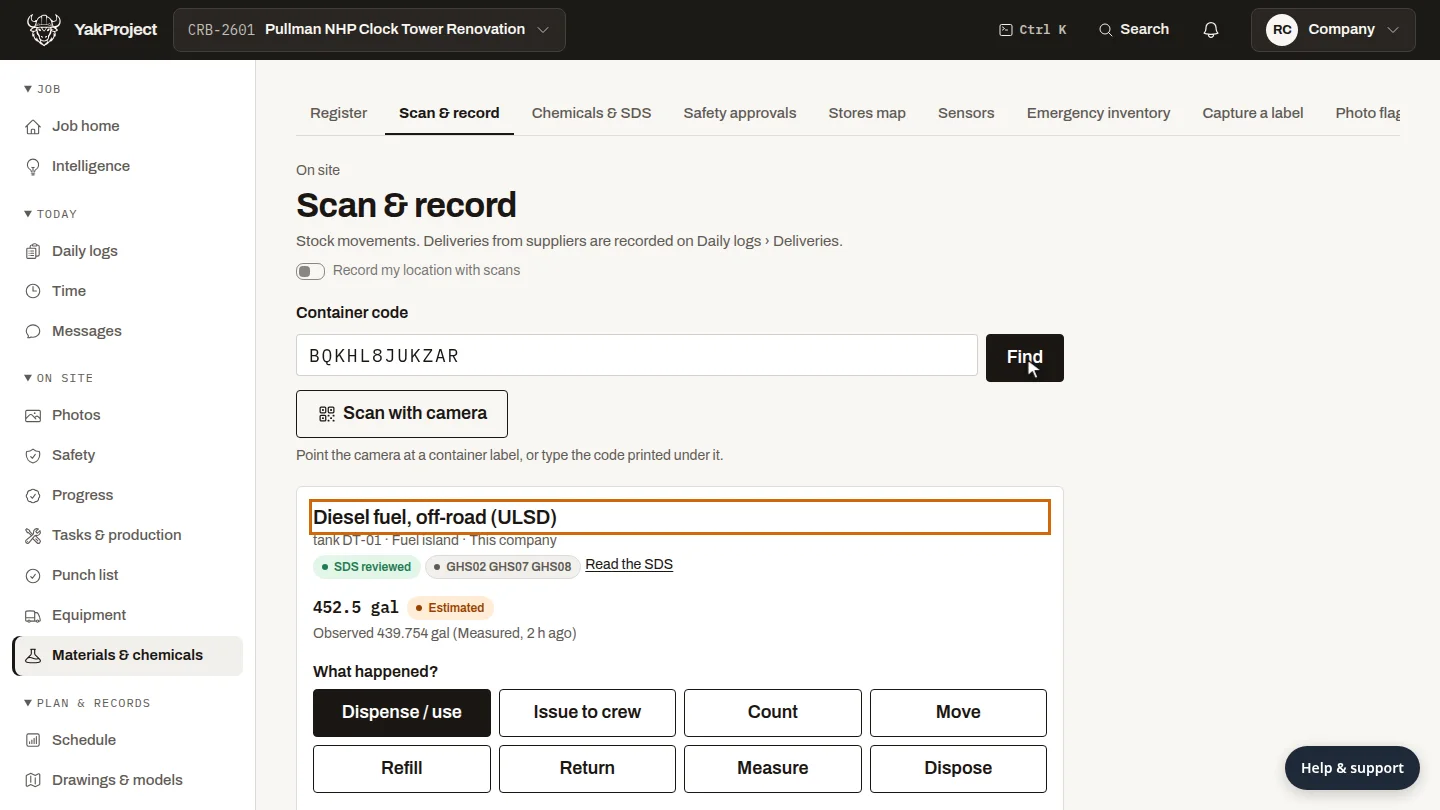
On Scan and record, select Scan with camera and point the phone at the label. Or type the code printed under it, and select Find. The diesel tank opens with its current figure.
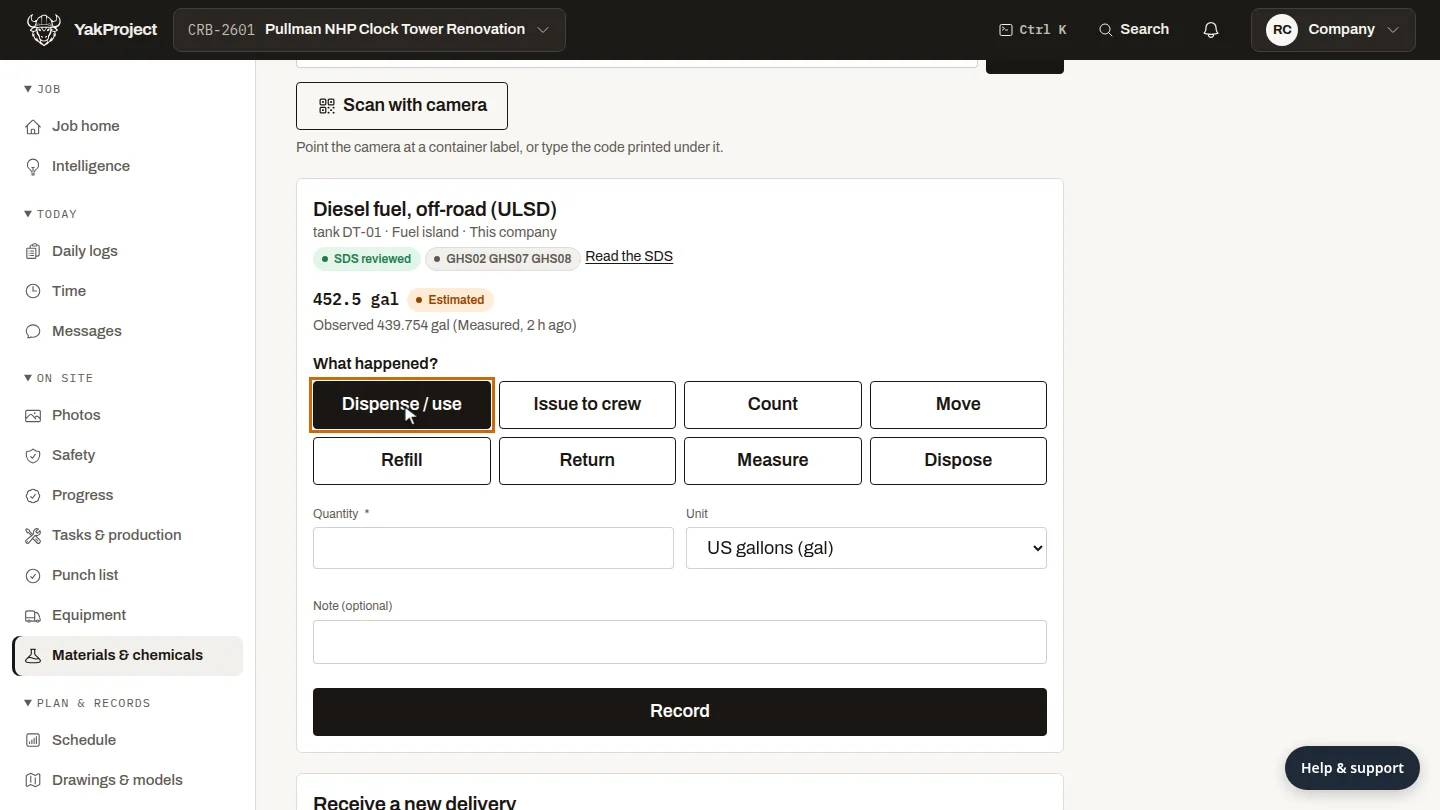
Under What happened, choose the movement: use, issue to the crew, count, move, refill, return, measure or dispose. Here, fuel was used.
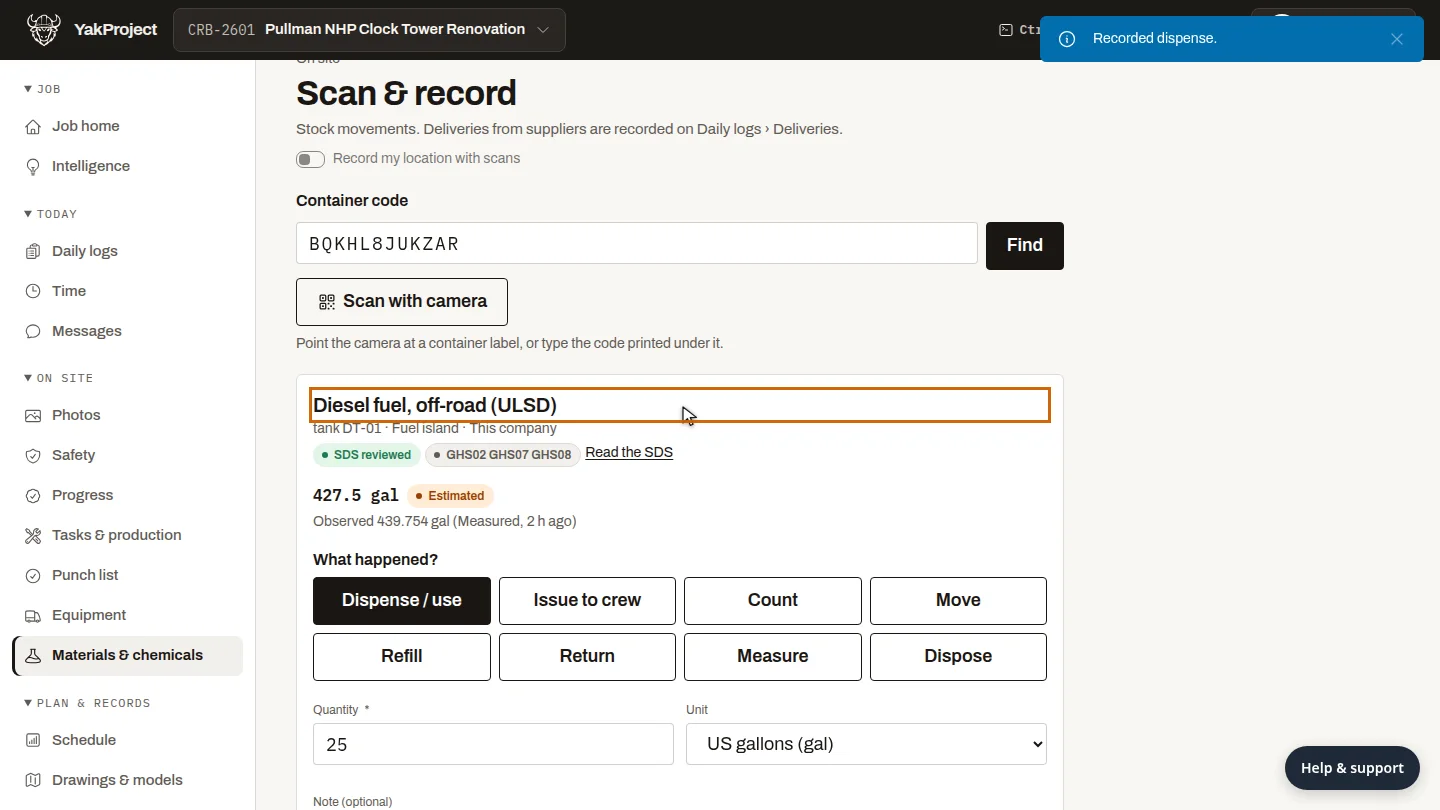
Enter the quantity, add a note if it helps, and select Record. The tank's figure drops straight away. Offline, the record waits on the phone and uploads when there's signal.
Steps
Find the container ▶ 0:07
On Scan & record, select Scan with camera and point it at the label's QR code, or enter the code printed under it (or the container's tag) in Container code and select Find. The container opens with its current quantity.
Choose what happened ▶ 0:20
Under What happened?, select the movement, for example Dispense / use.
Record it ▶ 0:30
Enter the Quantity and, optionally, a Note (optional), then select Record. The figure updates. Offline, the record waits on the phone and uploads when there is signal.
Next steps
Updated 2026-11-04
QR label stock count inventory dispense issue offline