How to approve a pay period in YakProject
Payroll should only see time someone has checked. Timecards lists the exceptions to clear first, then the locked pay period is approved in one step and becomes ready to export.
Before you start
- Payroll administrator or manager on the job
- A pay period locked for approval
Preview voice Narrated with a local preview voice; the final recording replaces it.
Transcript
Check the week's exceptions, then approve the pay period for payroll.
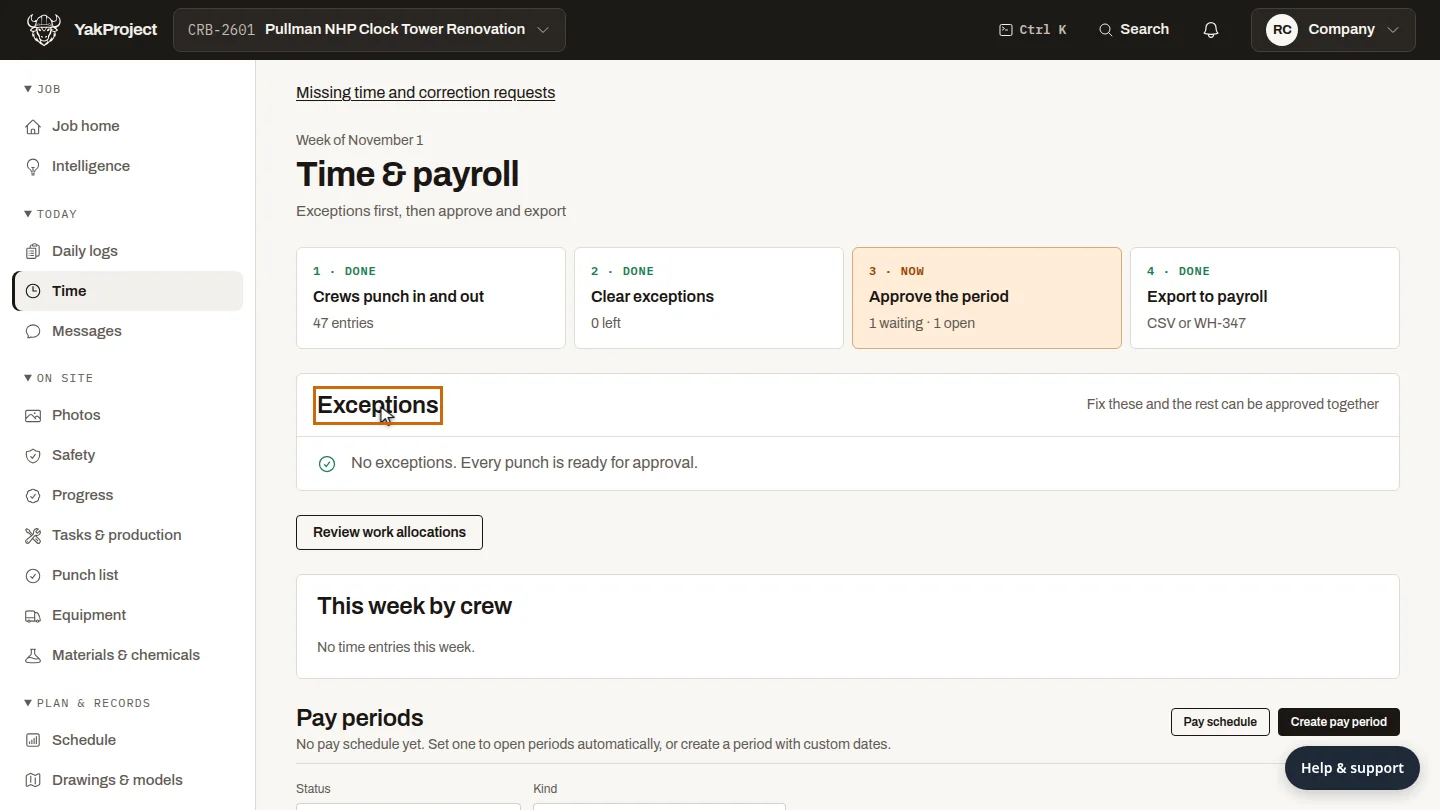
Open Timecards. Exceptions come first, such as clock-in photos flagged for review. Clear these before you approve.
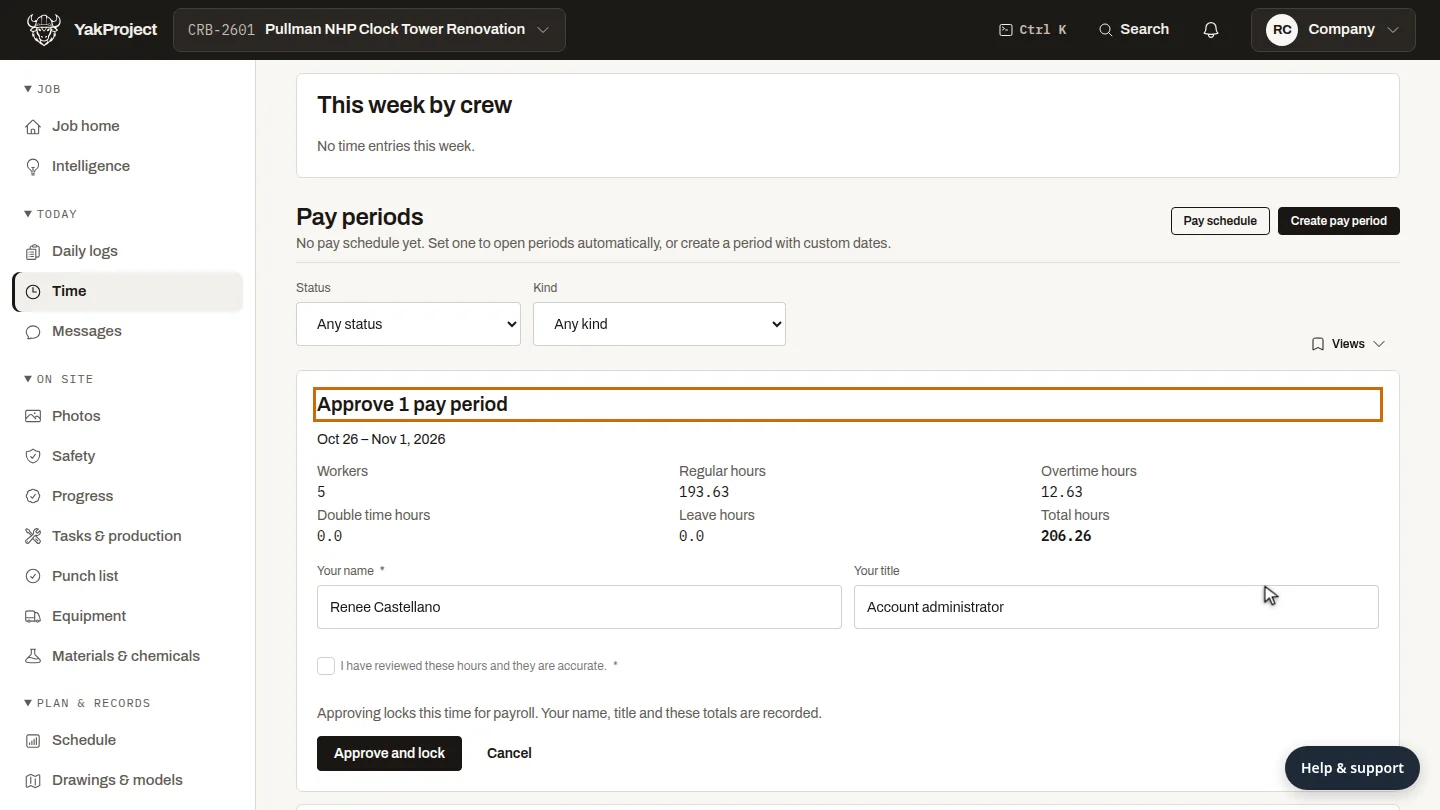
Under Pay periods, find the period marked Locked for approval and select Approve. A summary shows the workers, regular and overtime hours, and the total.
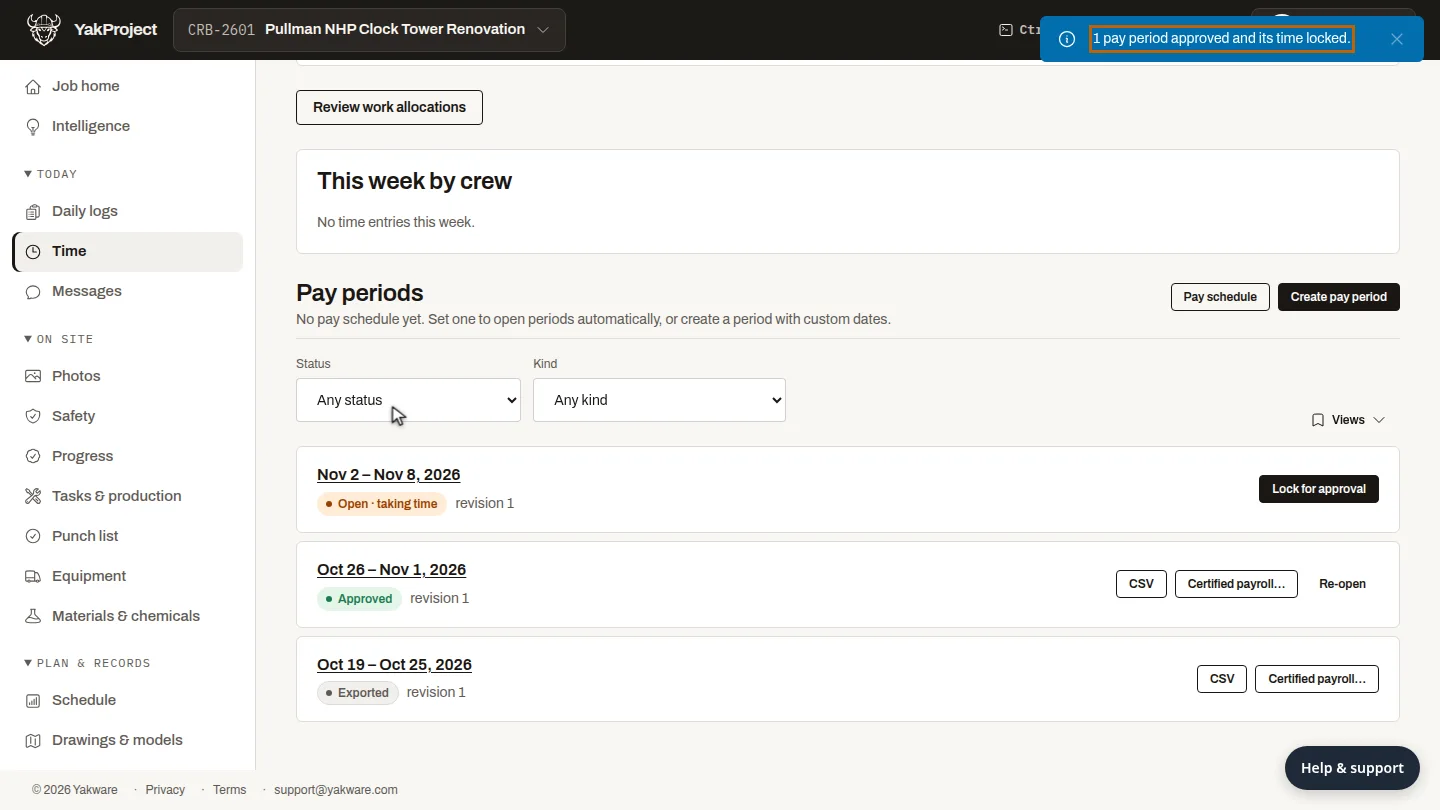
Your name and title are filled in. Tick the statement that you've reviewed the hours, then select Approve and lock.
Steps
Check the exceptions ▶ 0:06
In Time, open Timecards and review Exceptions.
Review the totals ▶ 0:14
Under Pay periods, select Approve on the period that is Locked for approval. Check the hours summary.
Approve and lock ▶ 0:26
Select I have reviewed these hours and they are accurate., then select Approve and lock.
Next steps
Updated 2026-10-26
approve timesheets payroll approval timecards certified payroll WH-347